

In order to keep you and your computer safe, modern browsers, like Chrome, include a variety of protective settings enabled by default. These include blocking pop-ups, ads, and “intrusive content” (often a catch all for everything else!). Particularly on macOS, Chrome will not allow things like screen capture, auto-play, or automatic downloads without your express permission, whether that is in a global setting or per-website.
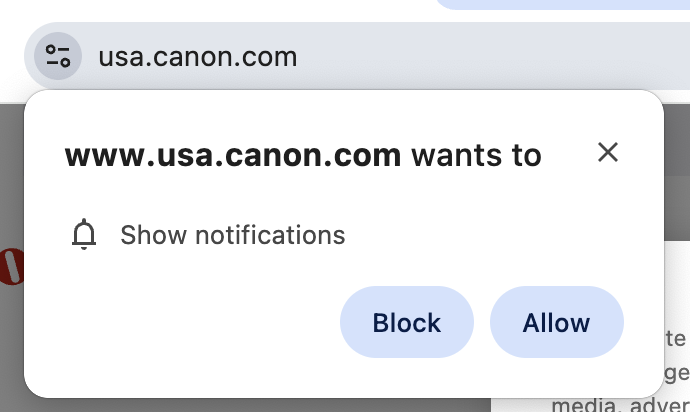
Note that we used Canon as an example for this guide by telling Chrome it was “bad”… In real life, Canon’s website is generally fine!
However, sometimes you need to access a website that is older, that has content incorrectly flagged as intrusive, or that you otherwise know to be safe.
You should generally keep the default settings that Chrome sets in place to help protect you globally, but you can alter settings for each website as needed.
Make sure you are absolutely certain the site you are visiting is safe! Remember, you are responsible for the content you visit, download, or otherwise give permission to— So use this guide with care!
How to access settings for a website
In Chrome, navigate to the website you want to view.
A regular website that doesn’t have pop-ups or insecure content should load like you’d expect, with images and designs in place.
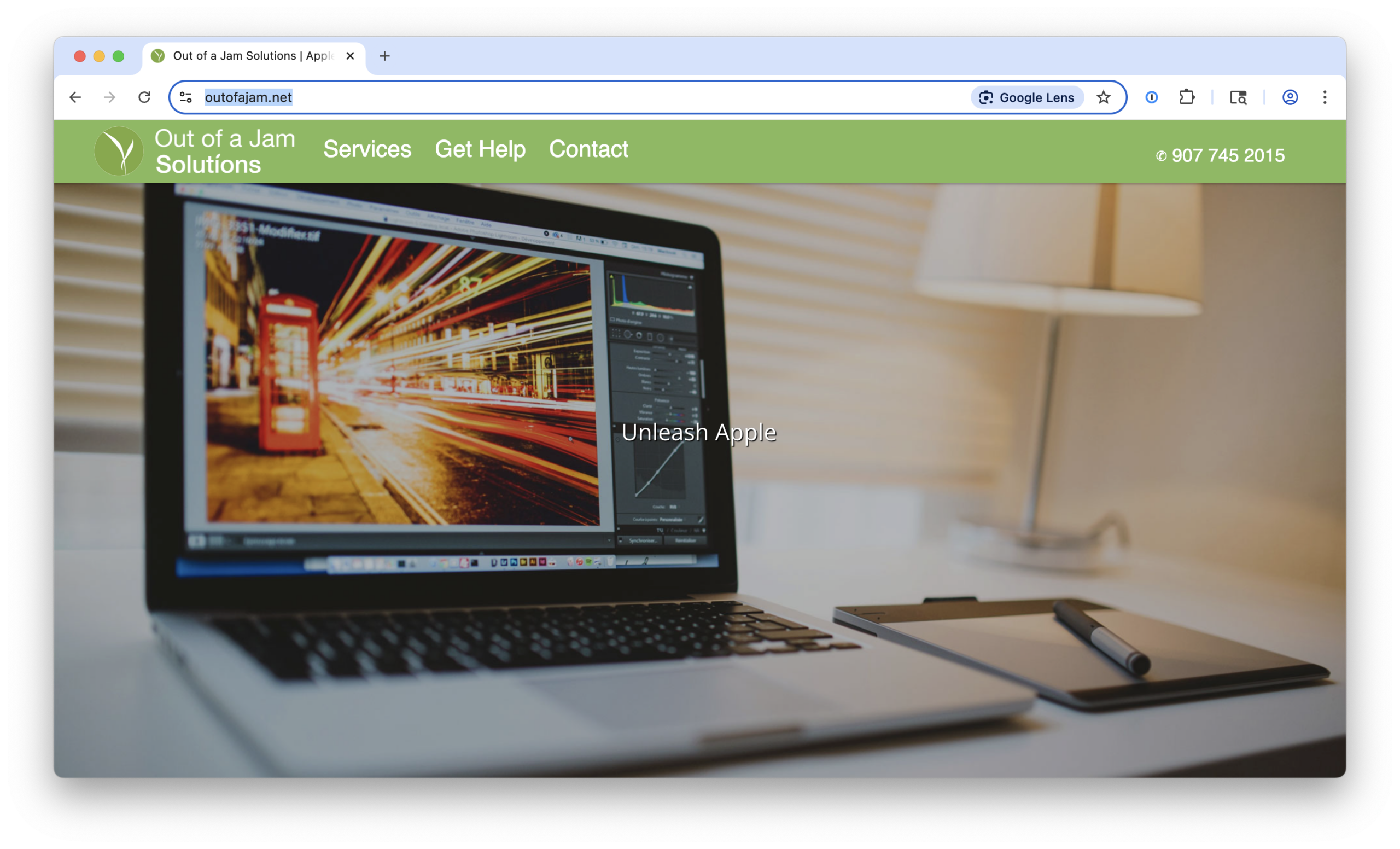
Websites that Chrome designates as intrusive may have content blocked. You can see in this example that images are not loading, exemplified with full nostalgia by the “broken image” icons.
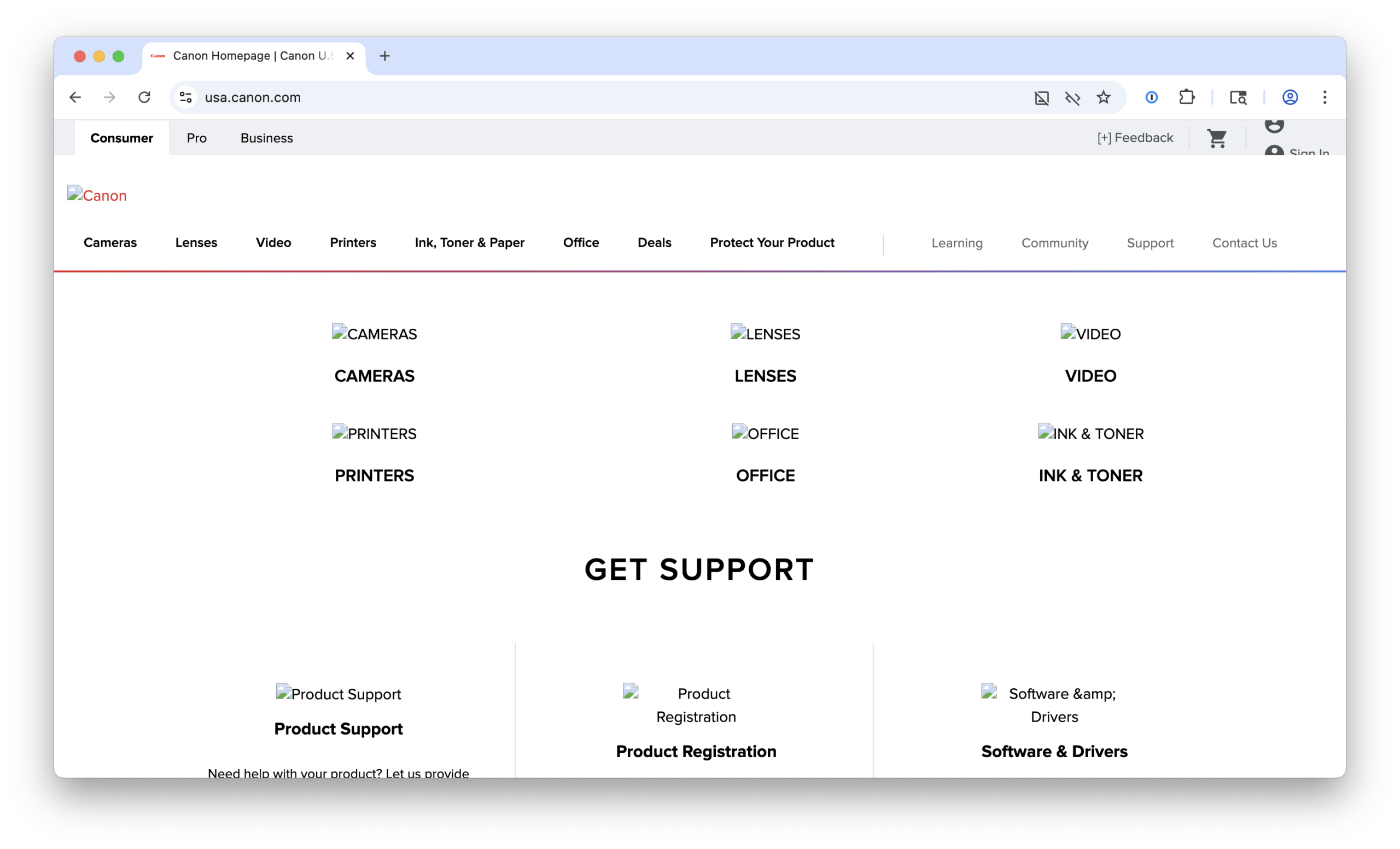
Chrome also indicates that images and JavaScript are both blocked here, with the icons in the top right corner of the screen.
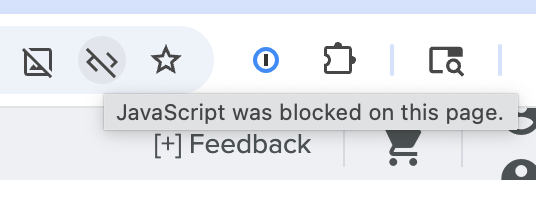
If a website is not working in some way— whether it’s showing warnings, not showing things you expect, or just not loading— you can minimize the protections in Chrome to try to make it work. Again, do this at your own risk! Make sure you trust the site you are using.

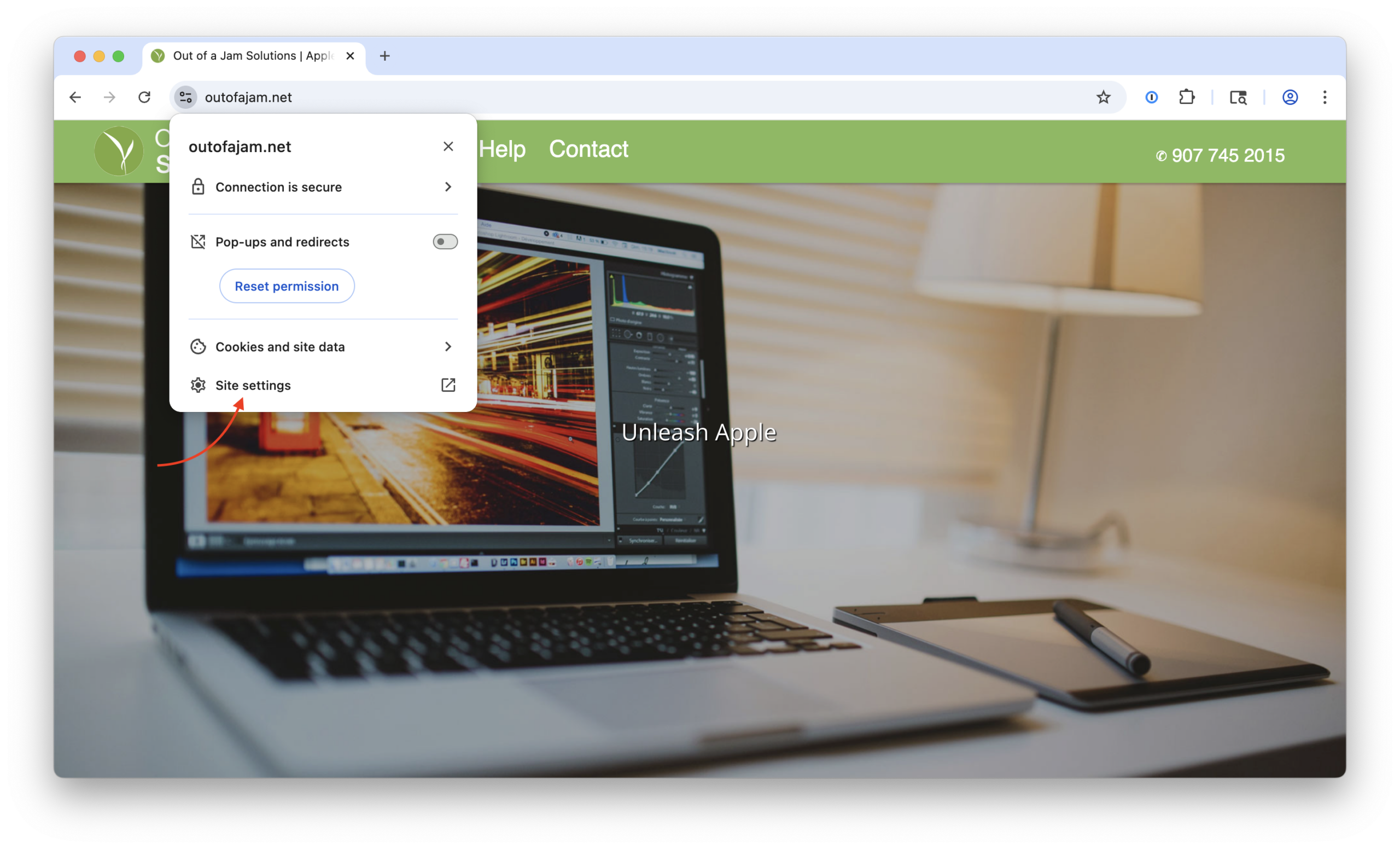
To allow pop-ups and other content, click the small icon of two lines with circles on opposite ends, found to the left of the URL in Chrome.
You’ll see a dropdown that gives you some options. From here, you can often immediately enable “Pop-ups and redirects” by clicking the available toggle, but there are other settings you should look at as well. Click “Site settings” to proceed.
Which settings to adjust
You’ll be taken to a new tab where you can adjust settings as needed.
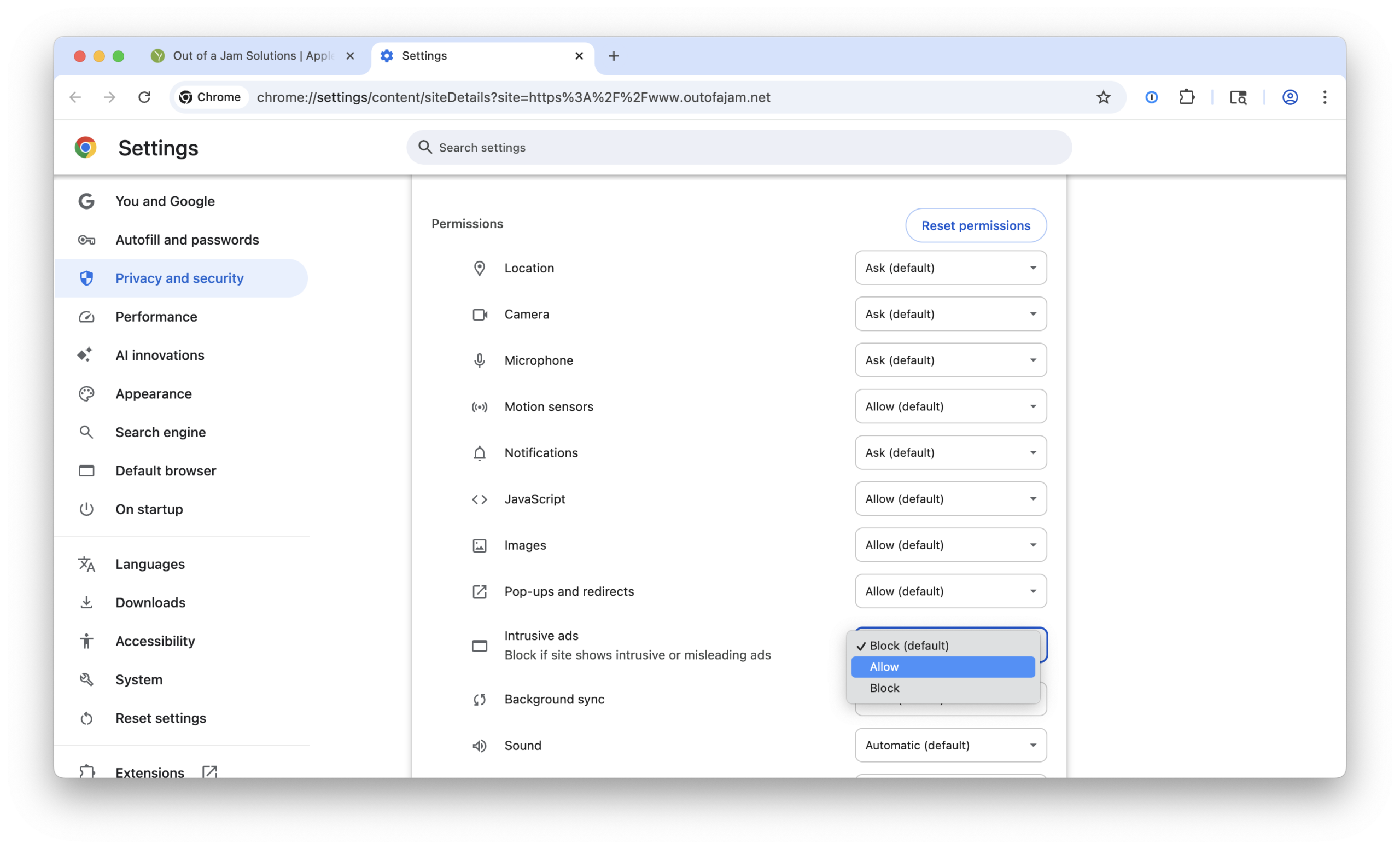
There are three main settings to check, that will most often allow trusted websites to work properly. The three settings are:
- Pop-ups and redirects
- Intrusive ads
- Insecure content
While of course these things don’t sound very good on their face, sometimes Chrome mis-identifies legitimate website features as untrustworthy. Set these settings each to “Allow” and then close the Site settings tab.
Chrome will now show a banner on the website in question that tells you that some settings were changed. Click the blue “Reload” button to allow these settings to take effect.
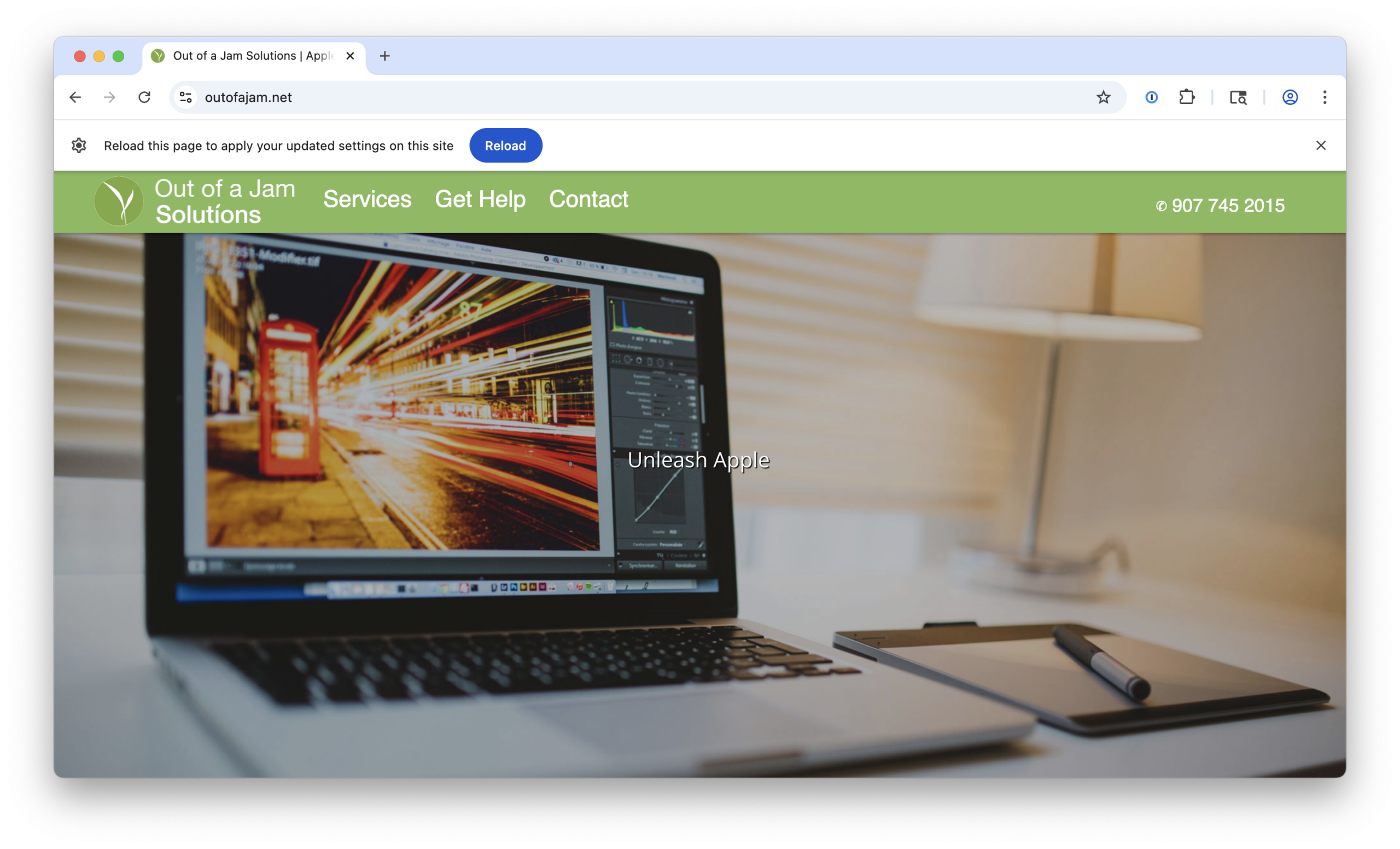
Once reloaded, see if the site is now working!
If not, there may be issues with the website itself preventing loading, or that make it too insecure to be worth visiting. There are also rare cases where something is not working on your computer. This might be the time to reach out to your preferred support team to dig in more.
If you make a mistake, want to re-secure your browser after visiting a site, or come to regret adjusting settings, you can visit site-settings again and choose to “reset permissions” for the website in question.
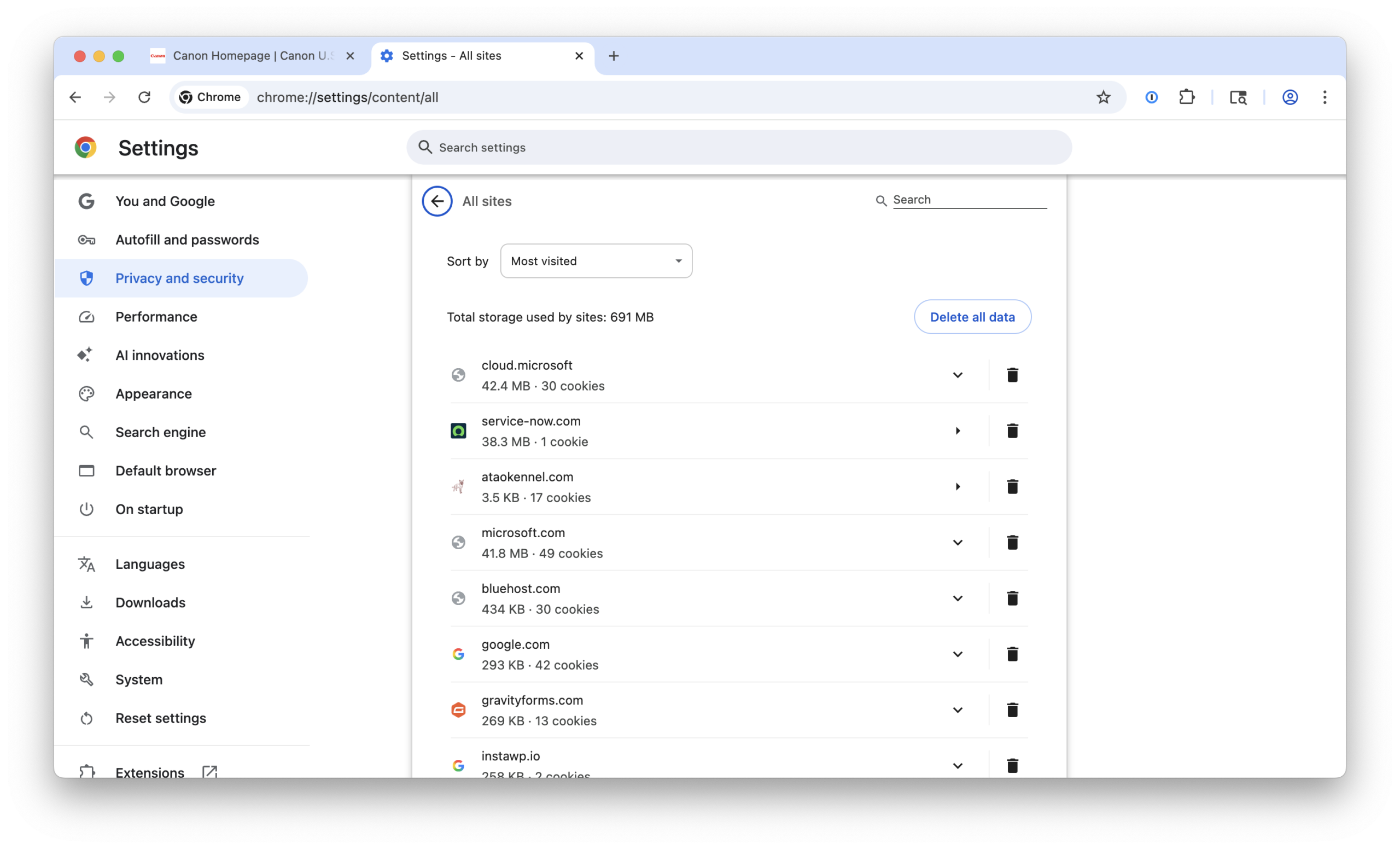
You can view which websites you’ve given special permissions to by going to Chrome Settings > Privacy and security > Site settings > “View permissions and data stored across sites.” Here you’ll see a rundown of which sites have what kind of access, and you can elect to delete those settings for specific sites, or to reset everything back to default by clicking “Delete all data.” These will also be reset if you choose to delete all history and data (cookies, caches, etc).
Bottom line
Chrome and other browsers enact protections to help ward off ever-changing threats to the internet landscape. It’s possible to adjust those as needed. Make sure to do this with caution. You can adjust the three main settings, “Pop-ups and redirects,” “Intrusive ads,” and “Insecure content,” to “Allow” to see if that helps you visit the trusted site you are trying to access.