

About Website Settings
In January we posted about how you can adjust settings in Chrome to allow content in various websites to work. With Chrome, we used the example of not being able to see images when you visit a site. With Safari, we’ll use the example of a recent client’s question, wondering how he can get the audio of some videos from Facebook to play as he’d expect.
Like we mentioned in the Chrome post, browsers, especially in macOS, often block content that could be intrusive, insecure, or unwanted. The internet is ever changing, ads and scams get ever more nefarious, and therefore, to keep you from drowning in commercials and noise, internet browsers have to up their game in what they block out. Better to block out too much than to give a pass to all video, and suddenly your computer is taken over by a loud voice warning you that you have one day to pay x-amount of Bitcoin before all of your darkest secrets are shared to the world. (Spoiler, this is a fake alert designed to get you to call and supply money to a fictional “support” team. Just close it!)
What this means, though, is that sometimes the “good” content gets caught up in the net. Images might be broken, whole pages don’t load, and, in the case of our client, videos won’t play audio no matter what you do. How can you fix this? There’s a way!
Safari, like Chrome, provides options for reducing the protections of specific sites that you choose. Just like in our post about Chrome, remember that you adjust these settings at your own risk! It’s up to you to ensure the site is trustworthy before you allow it the ability to show / play / download / etc unknown content.
Hot tip: Keep in mind that you can adjust every setting in one browser and the website you want still might not work. Its programming (or the browser’s!) may be behind, it may not have the proper security credentials that gives the site overall a pass to be shown widely, or it may have been reported as spam to a degree where one of your browsers won’t allow the content to be shown, no matter what you adjust. If this happens, try the website in one of the other browsers. In other words, if a site you need isn’t working in Safari, even after using this guide, try the website in Chrome!
How to Adjust Website Settings in Safari
Safari has a couple of routes to adjust settings.
Option 1: Website Settings Icon
1. Go to the site you want to use, the one that isn’t playing sound or video, or doing what you need it to do.
2. Once you are there, click or hover your mouse over the URL bar. You should see an icon of a small rectangle with two lines underneath on the left side of the URL bar.
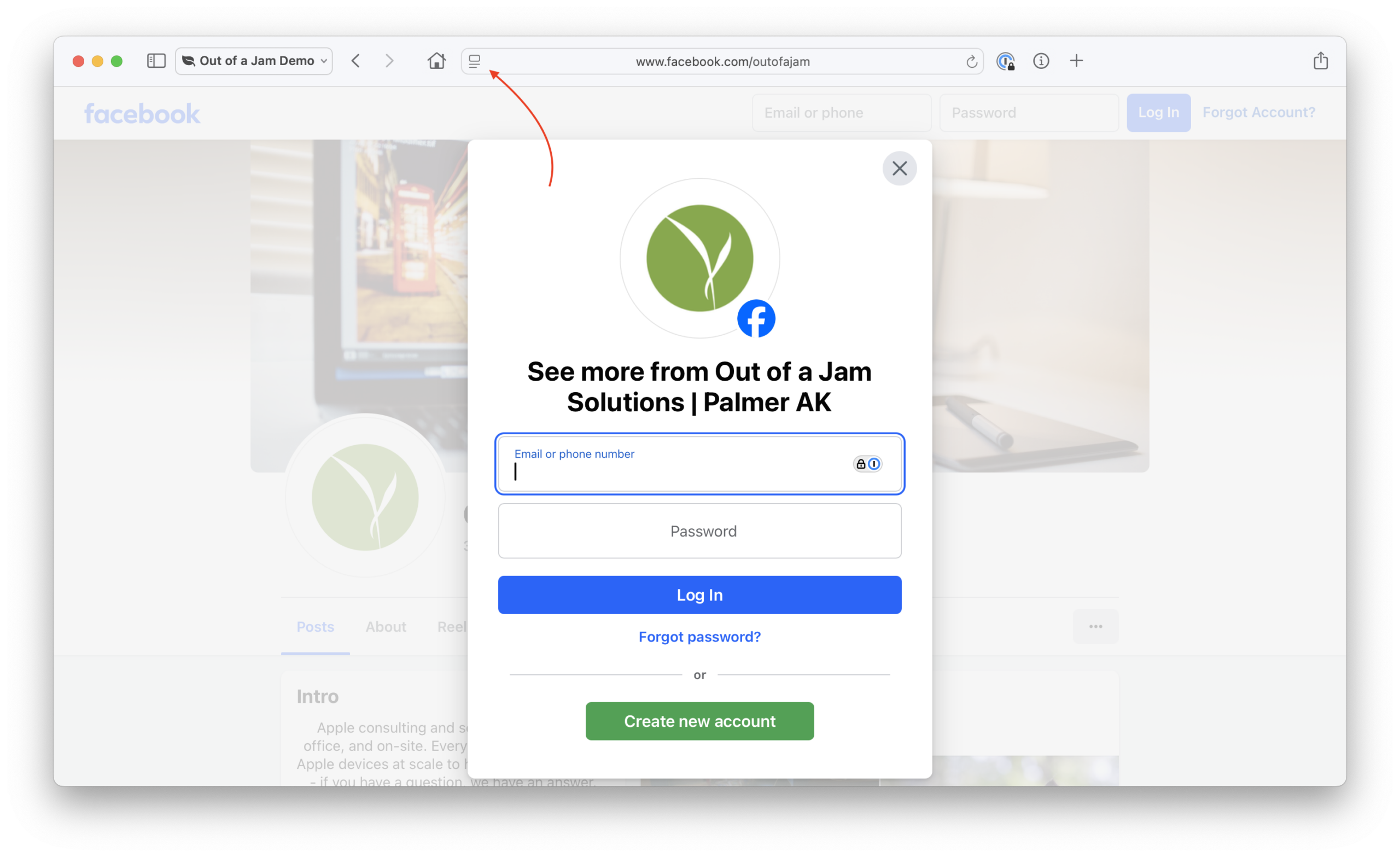
3. Click the icon of the rectangle with two lines, and you should see a dropdown with some options, including “Website Settings.”
4. Click “Website Settings.”
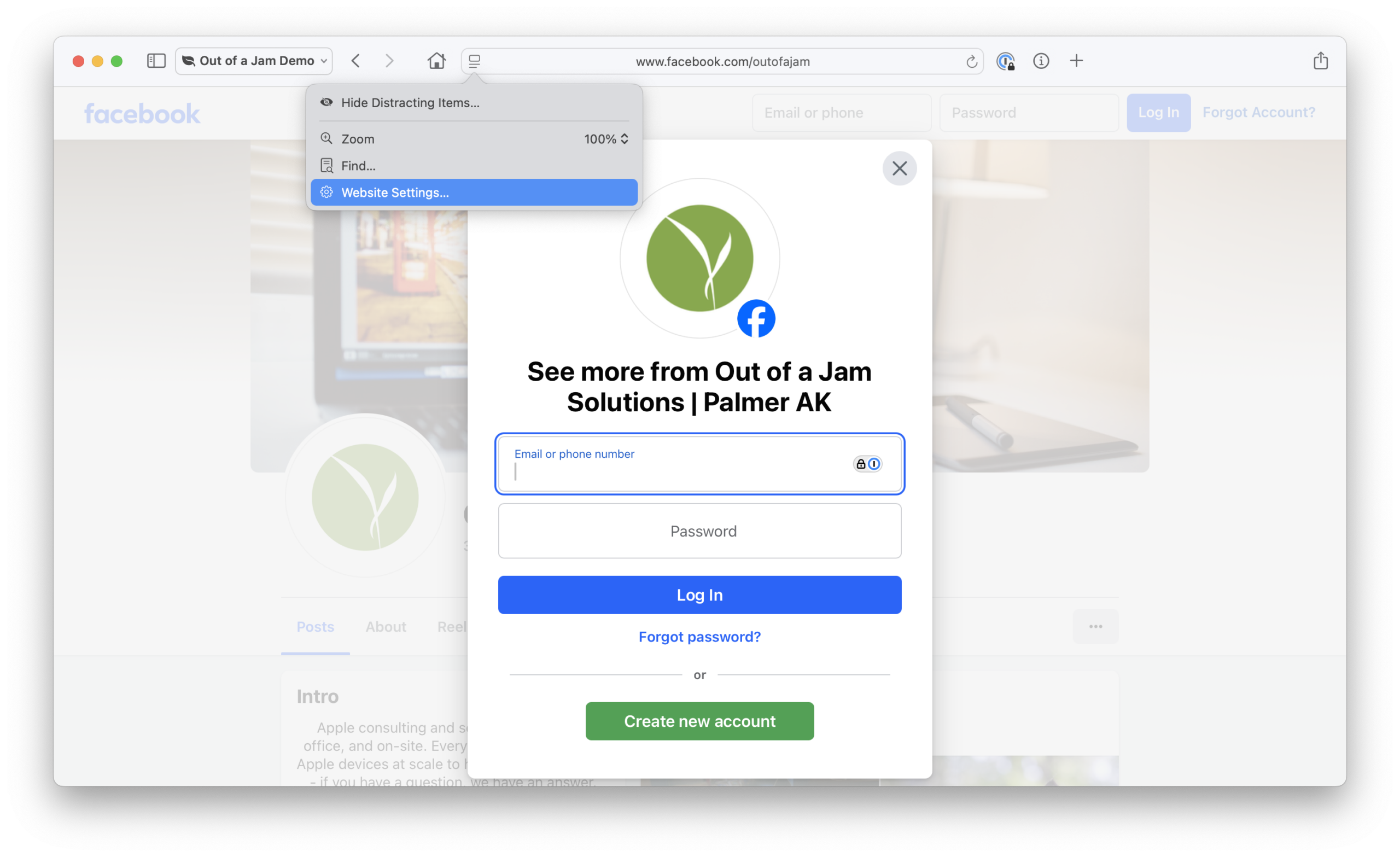
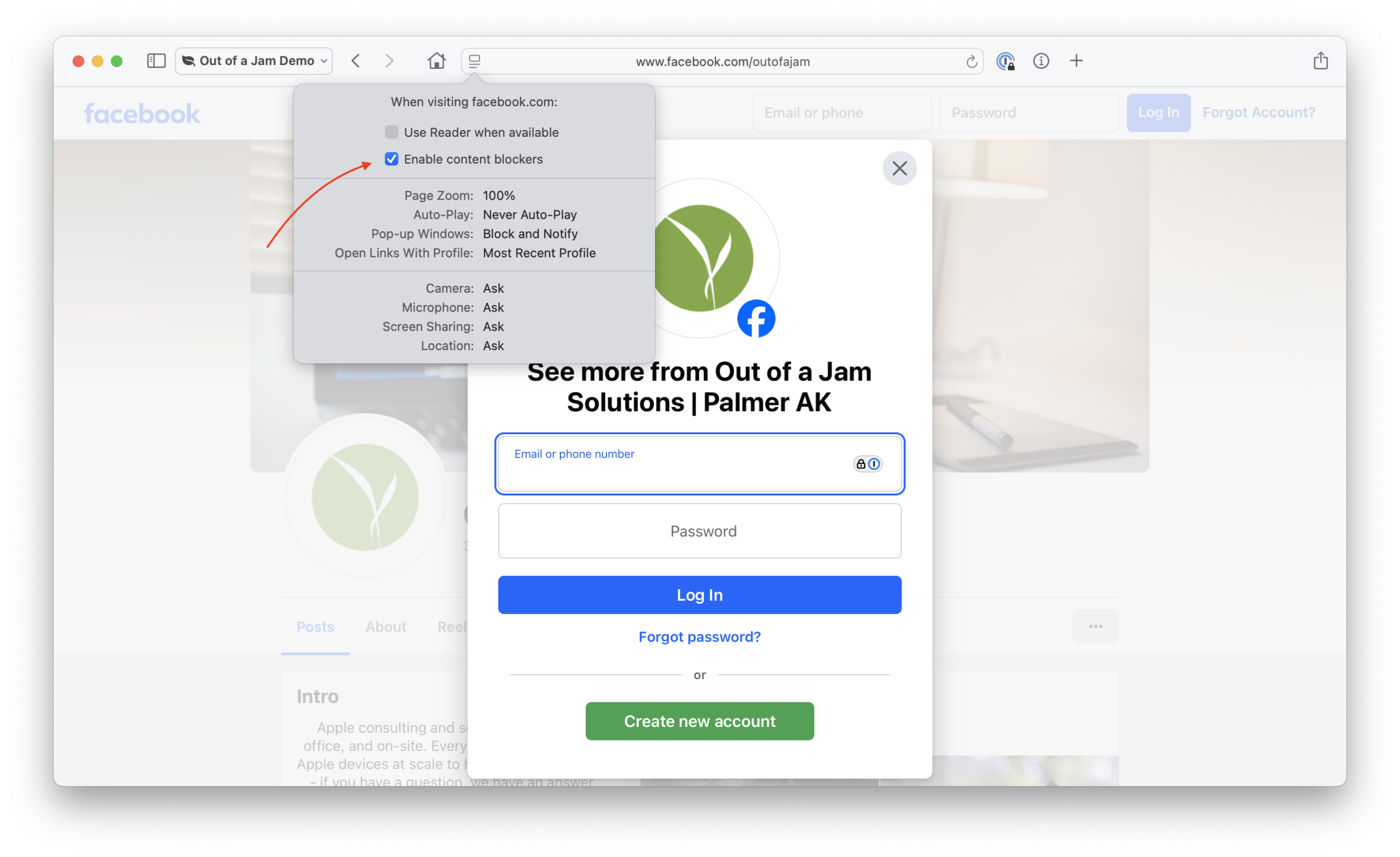
Now you’ll see some information on what types of content is allowed or blocked for the website you are visiting. The big one we are looking for is “Enable content blockers.” If this is checked, it will prevent a lot of website activity. Typically, this is a good thing! It protects you. But, if you feel confident that the site you are visiting is safe, you can:
5. Uncheck the box by “Enable content blockers.” The site will immediately reload, and if that was your issue, you’ll see and hear the content you want. Sometimes, though, you have to:
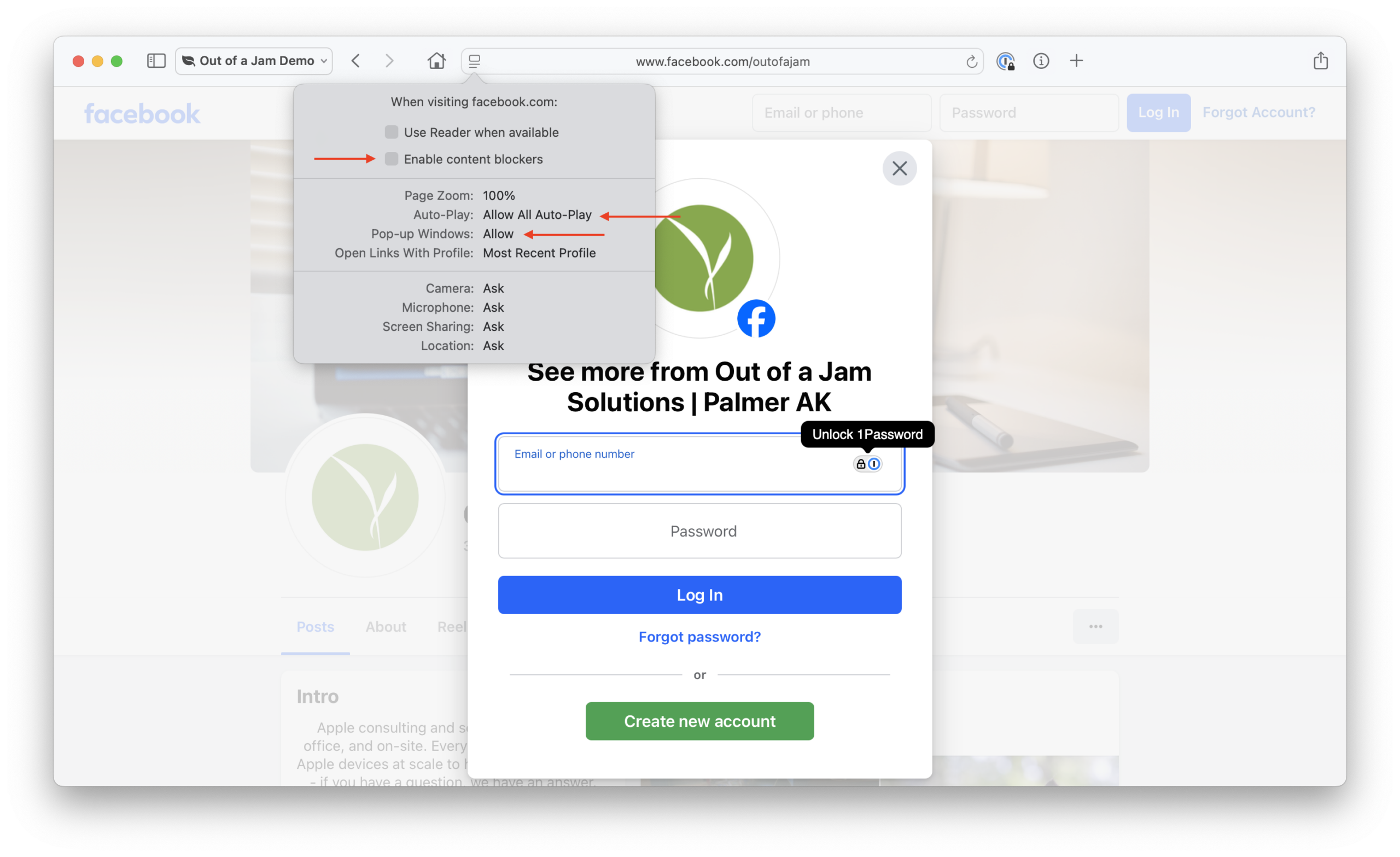
6. Make additional adjustments as needed, like changing “Auto-Play” to “Always allow” for this site.
The most permissive version of website settings looks like what you see below. “Enable Content Blockers” is unchecked, “Auto-Play” and and “Pop-up Windows” are set to versions of Allow. Reminder: use these settings cautiously and at your own risk!
See if these changes help. If not, try quitting and re-opening Safari, restarting your computer, or trying another browser. Remember, sometimes some websites just will not work, no matter what you allow!
Option 2: Website Settings in Safari Menu
You can also get to the settings for a specific website with the Safari menu.
1. Again, go to the site you are trying to use.
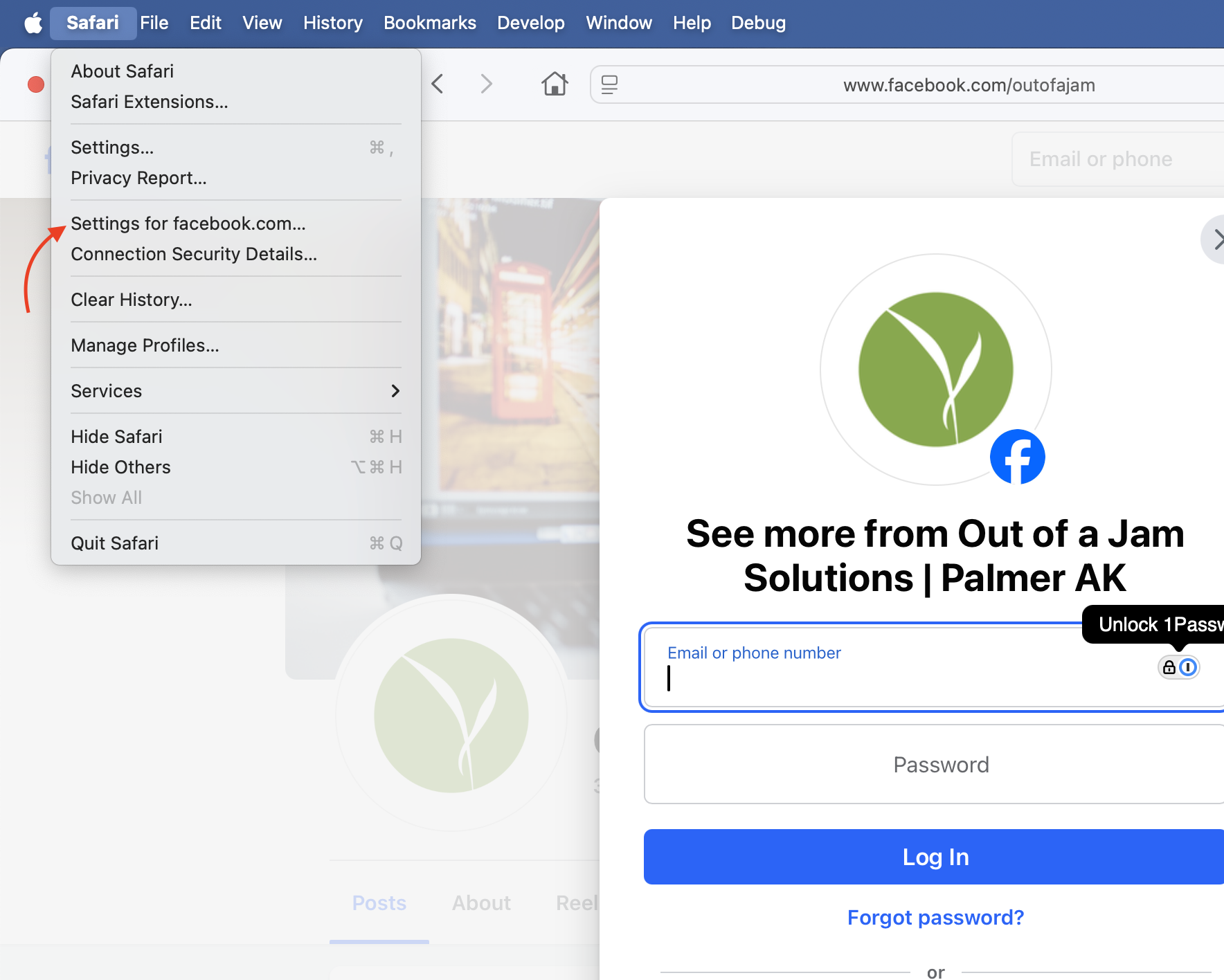
2. Click “Safari” in the top left corner of your screen, next to the Apple icon. You’ll see a line showing “Settings for <this website>”.
3. Click “Settings for <this website>”, and the same dropdown will appear by the URL bar. From here, you can adjust the settings as in steps 5 & 6 above.
Wrap Up: Checking your Work
What if you want to review which sites have which permissions? You can do that too! Not only is this a good way to remind yourself of what websites you allowed to use popups, audio, etc, but it can be a great way to make sure nefarious sites are not also sneaking permissions when they shouldn’t be. To check the sites that are allowed to do things:
1. Go to the Safari menu and click “Settings.”
2. Click “Websites” at the top of the Settings window. You’ll see a list on the left of various types of permissions.
3. Click a permission type, like “Auto-Play,” and you’ll see sites that have requested permissions. You might see a lot more than you ever used this guide on! That’s because every site you visit requests permissions for various tasks, but Safari, by default, denies those permissions. When you look at the long list of sites in this window, many of them show “Don’t Allow” or similar in their dropdowns. In this screenshot, the window shows the sites that are open and denied Auto-Play permission, as well as the specific sites that have been set to Always Allow Auto-Play in the past, under “Configured Websites.”
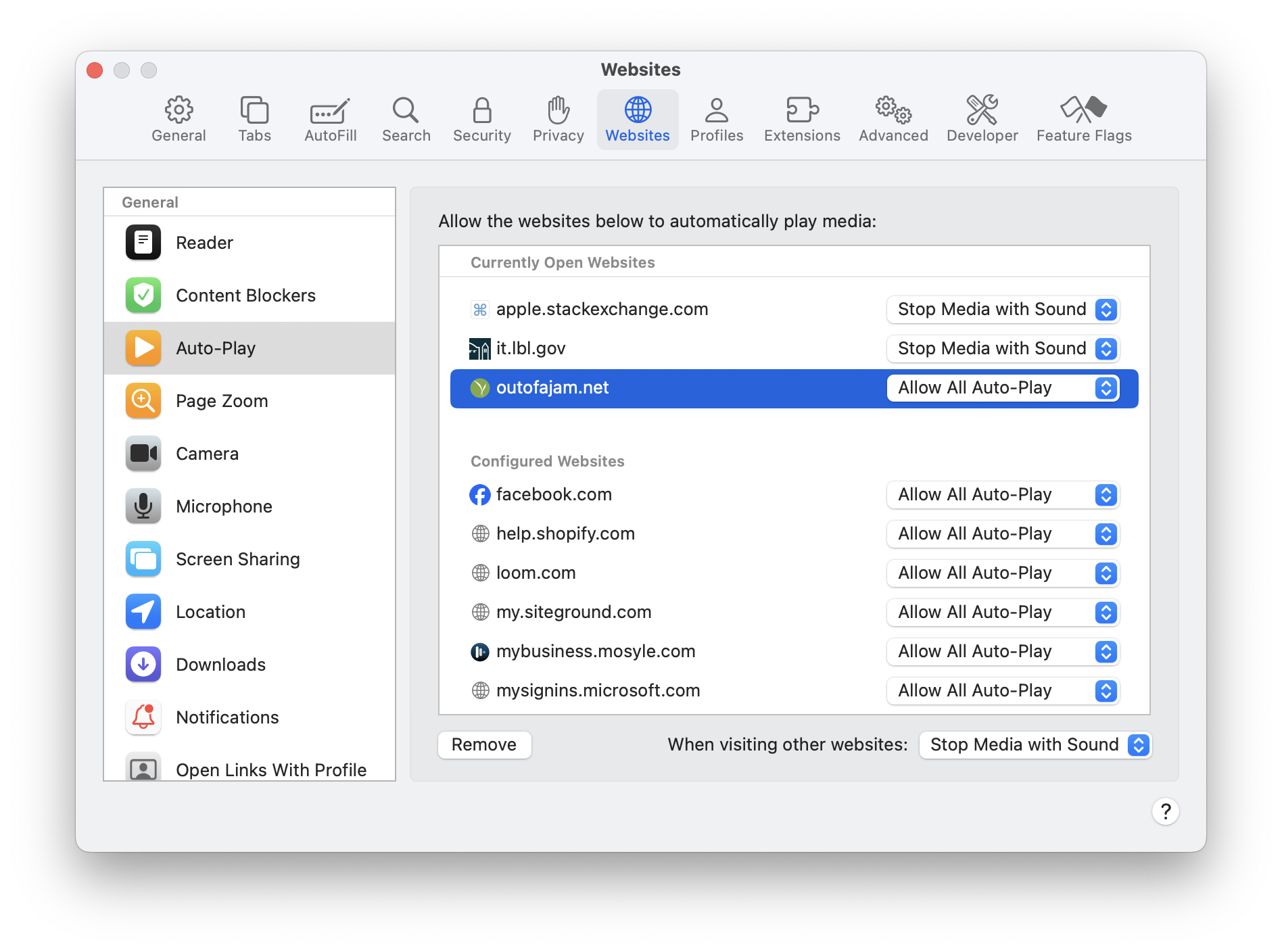
4. In the Websites area of Safari’s Settings, you can find the site you are wondering about and change its permission back, or you can scan through the permissions in general and make sure nothing fishy has extra capabilities.
Before you even grant a site permission, go take a look at what already is granted permissions in the Websites section of settings. Are there any there that surprise you? It doesn’t hurt anything to change from “Allow” to “Don’t Allow.” It’s also perfectly fine to “remove” a site (the button at the bottom of the window). The worst that will happen if you do this is that you would have to grant permission for a particular website again. Our advice is to always err towards “Don’t Allow,” especially with anything you don’t recognize. Better to be safe than sorry!
Remember, sometimes making changes to an application (in this case, a browser) doesn’t “take” right away. It can be smart to fully Quit out of Safari when you’re done altering settings, and then to restart your computer. This will allow the new settings to settle in.