
1Password is a fantastic tool, but if you’re not familiar with the interface, it can be confusing. Here’s a very basic breakdown of how to edit / update the passwords for existing items in 1Password for macOS.
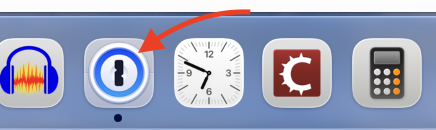
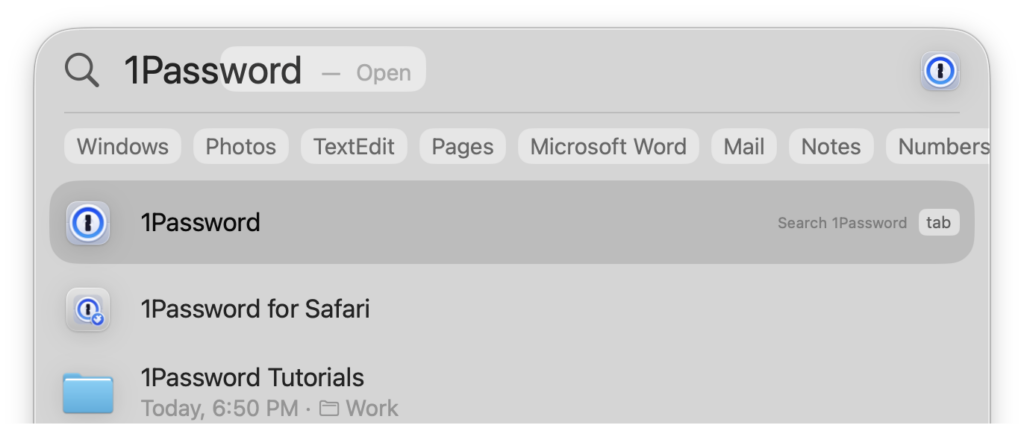
Open 1Password. You can look for a gray icon with a blue and white circle in your Dock or your Applications Folder, or you can click the magnifying glass in the top right corner of your screen, and type “1Password” in Spotlight Search.
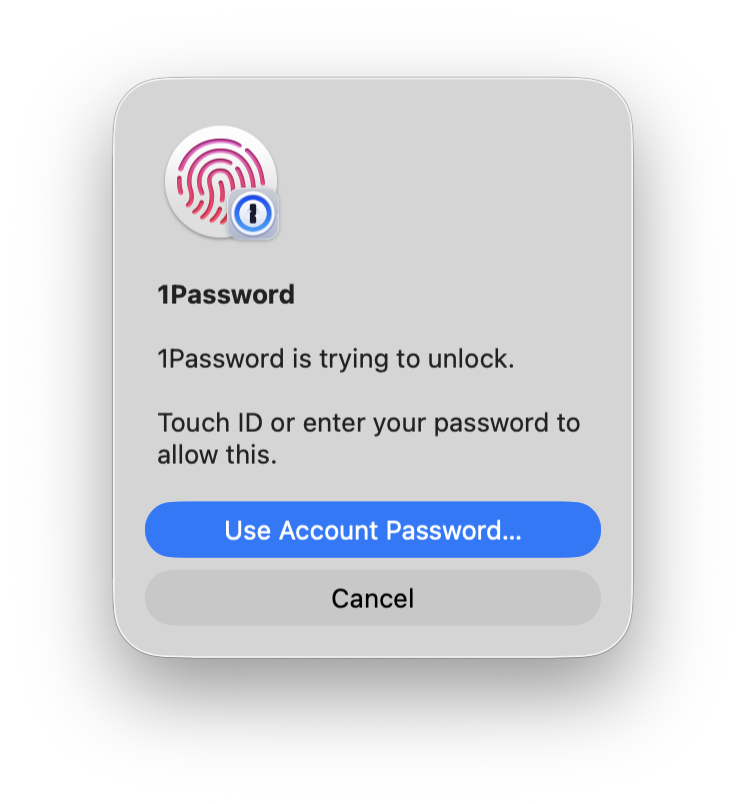
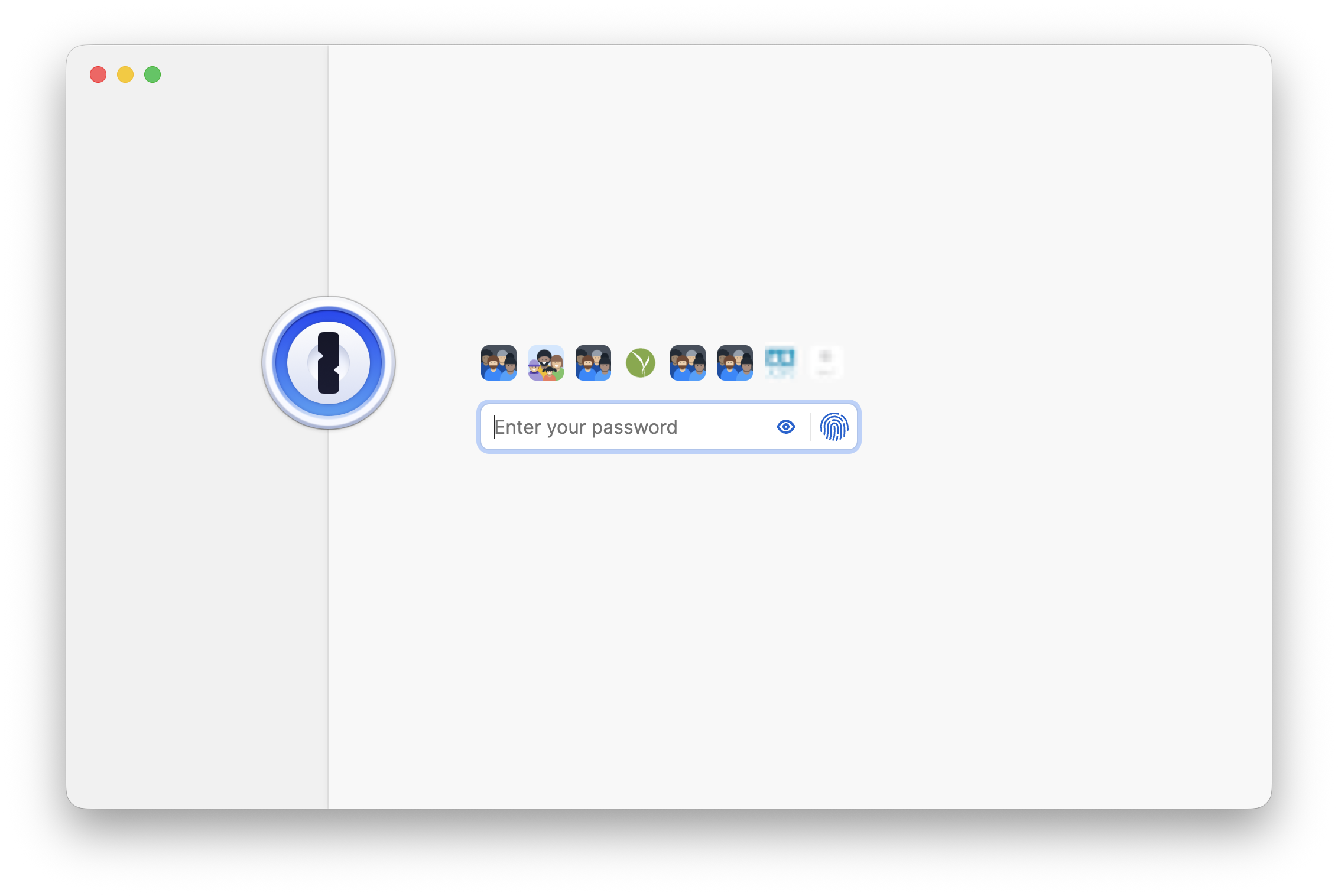
You’ll be prompted for either your fingerprint, your computer password, or your 1Password password. Remember, if the password prompt is in a smaller window that looks like the one to the left below, it’s asking for your computer password or your Touch ID (fingerprint). If the password prompt is in the bigger 1Password window, it wants your super-secret 1Password password you created when you made your account.
Once 1Password opens, find the item you want to edit and click on it. Details about the item will appear on the right. If your password is too short or easy to guess, you’ll likely see a warning about its strength!
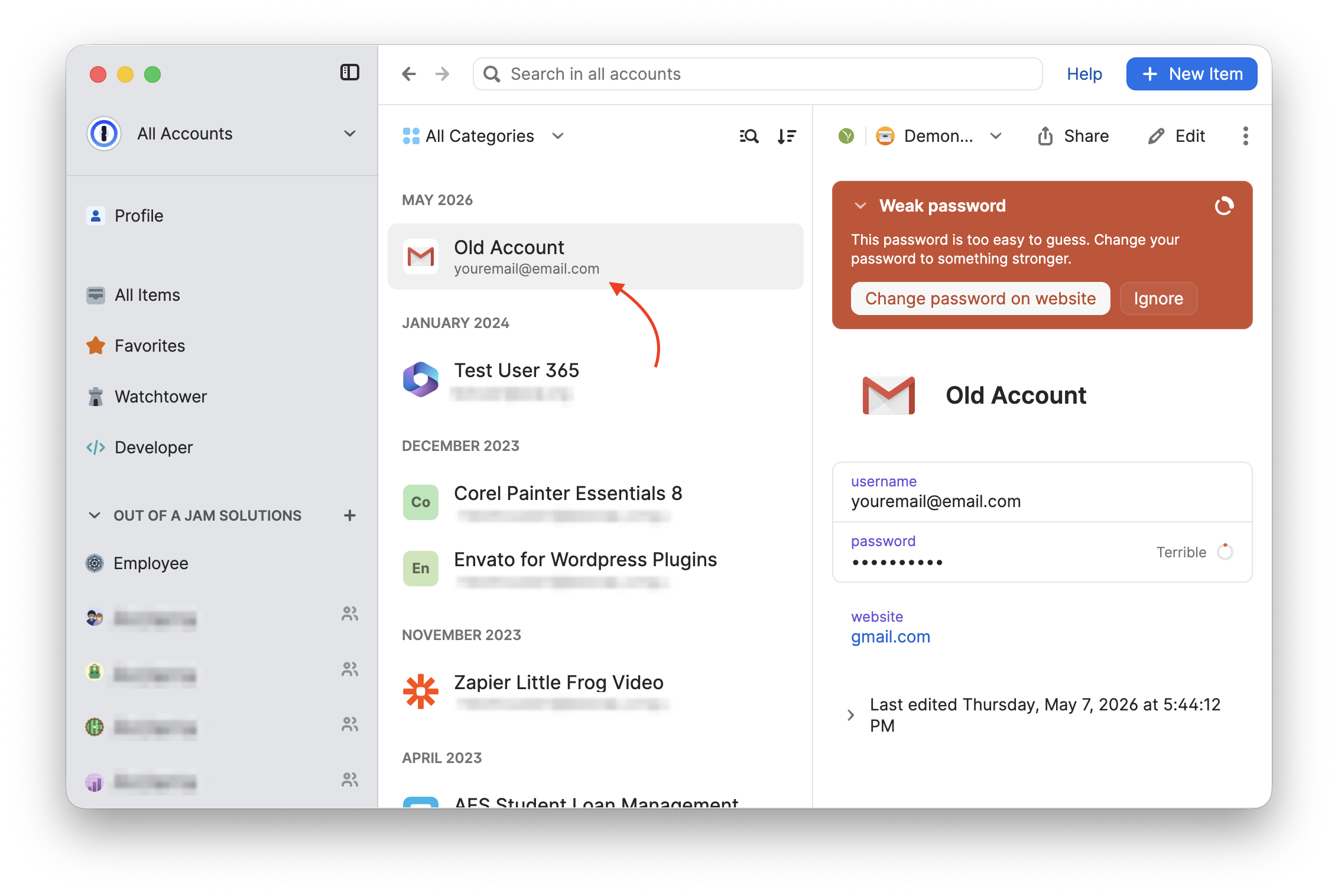
You probably notice the button here suggesting to “Change password on website.” That is a fine tool, but can sometimes be confusing, so for now, you can ignore it! We’ll write a post about that process soon.
One of the easiest ways to make sure you update to a secure password and have that information saved is to first change the password in 1Password itself. This will allow you to copy your new password into the “change password” field when everything is set in 1Password.
So how do we change a password item in 1Password?
1. Edit the item
In 1Password, with the item you want to adjust clicked, you can then click edit in the top right corner of the window.
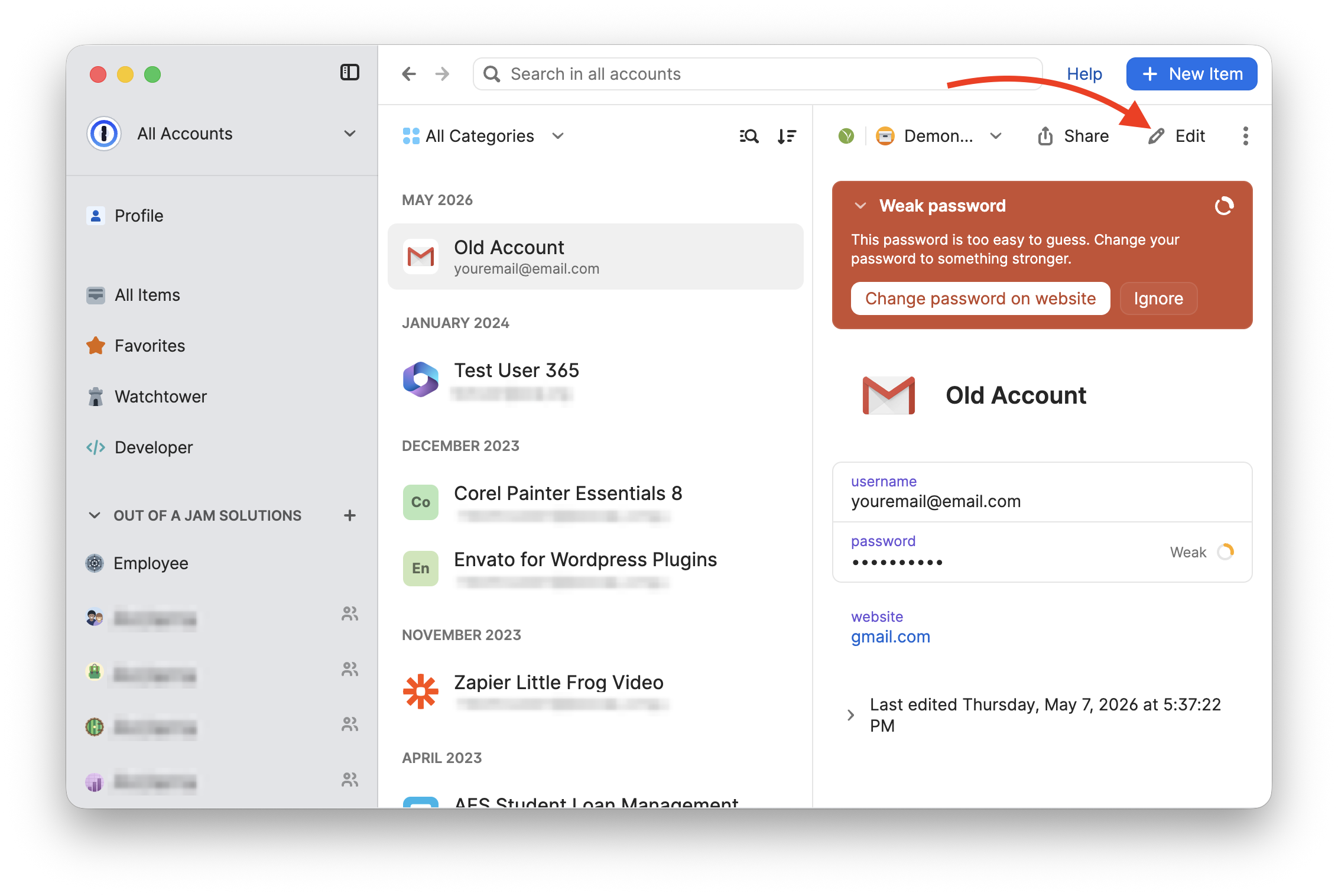
This allows you to type in any of the item fields. The password field will still be obscured even in editing, until you’re ready to change it. Click on the password field to reveal what it is, and to allow typing.
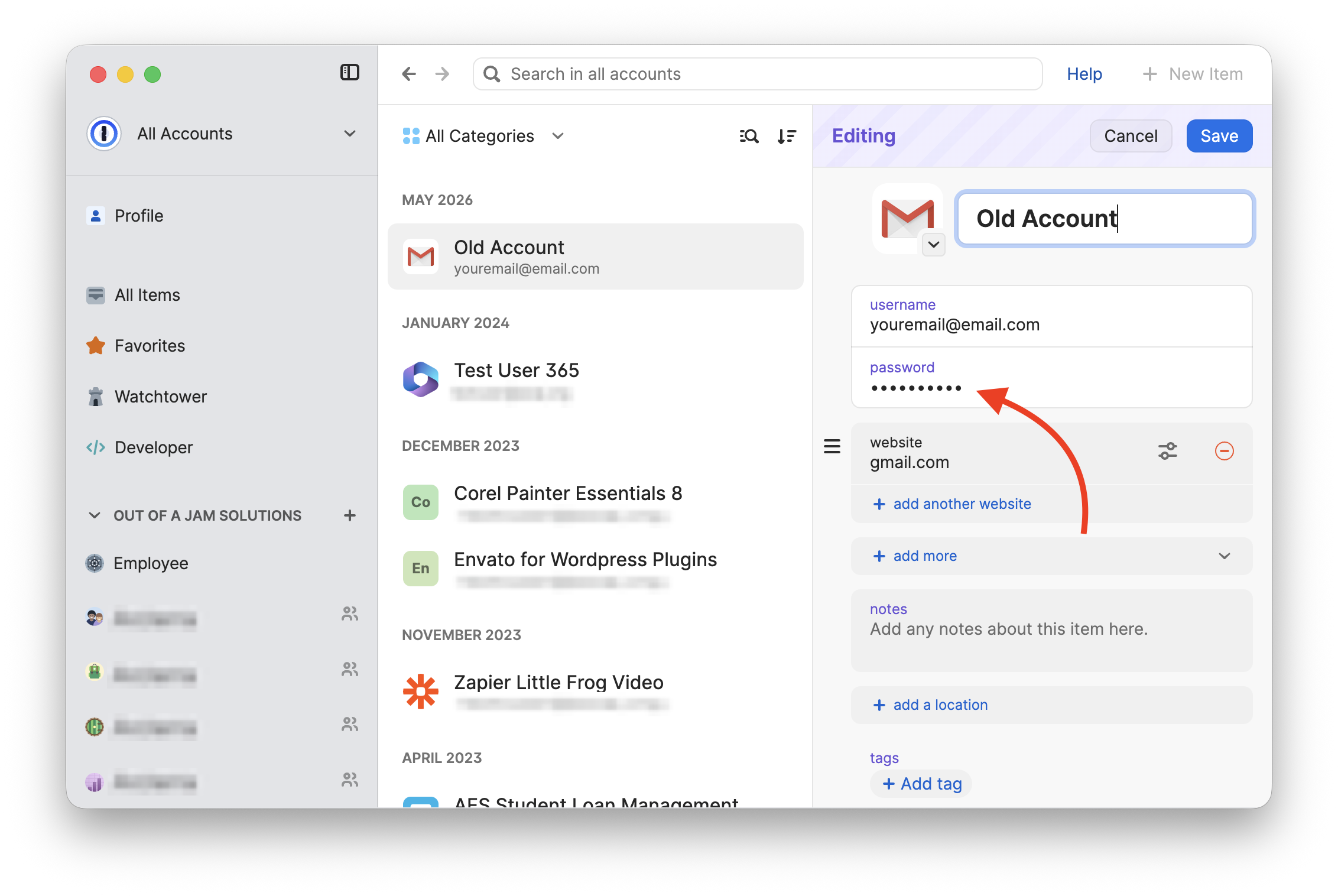
Now you can either type in your own new password, or you can use the provided 1Password “new password” tool. This is the best way to create secure passwords, so let’s take a look. Click “Create a New Password” to begin.
2. Create new password
You’ll see a window with some options appear. You can choose to create a random password, a memorable password, or a pin. The random password option is the strongest, but can be hard to manage if you need to type into a field manually. Let’s focus on “memorable” passwords today. These are sometimes called “passphrases.” Here are the settings we recommend for memorable password / passphrase creation.
- Type: Memorable
- Words: 3
- Separator: Hyphens
- Capitalize: Yes
- Full Words: Yes or No (full words are easier for you to remember; partial words are harder to code break)
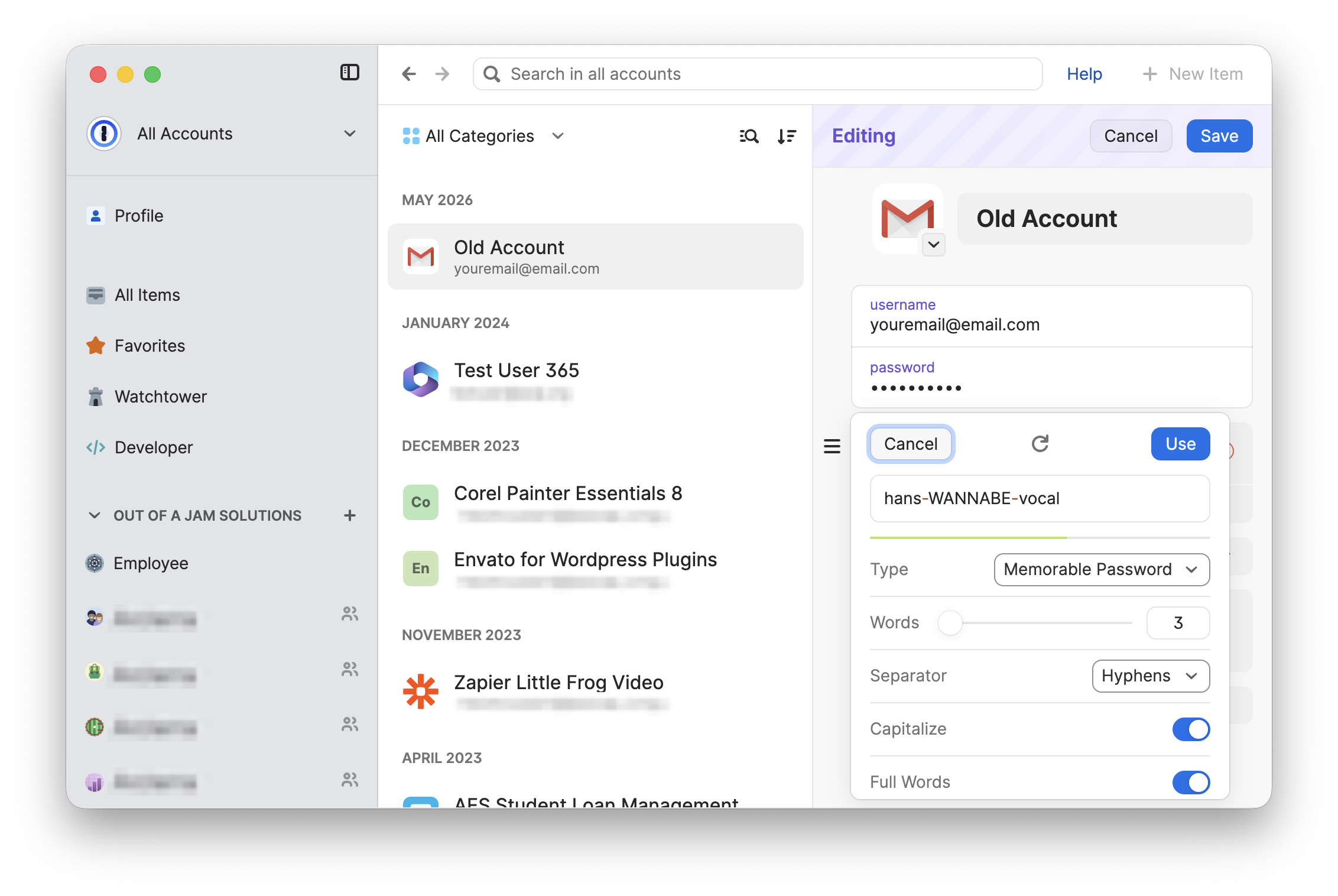
The “Create New Password” tool generates a passphrase that fits these criteria: in this case, three words, one of them in all-caps, separated by hyphens. If you don’t like the initial suggestion, click the “refresh” button at the top center of the “Create New Password” window, and you’ll get another option.
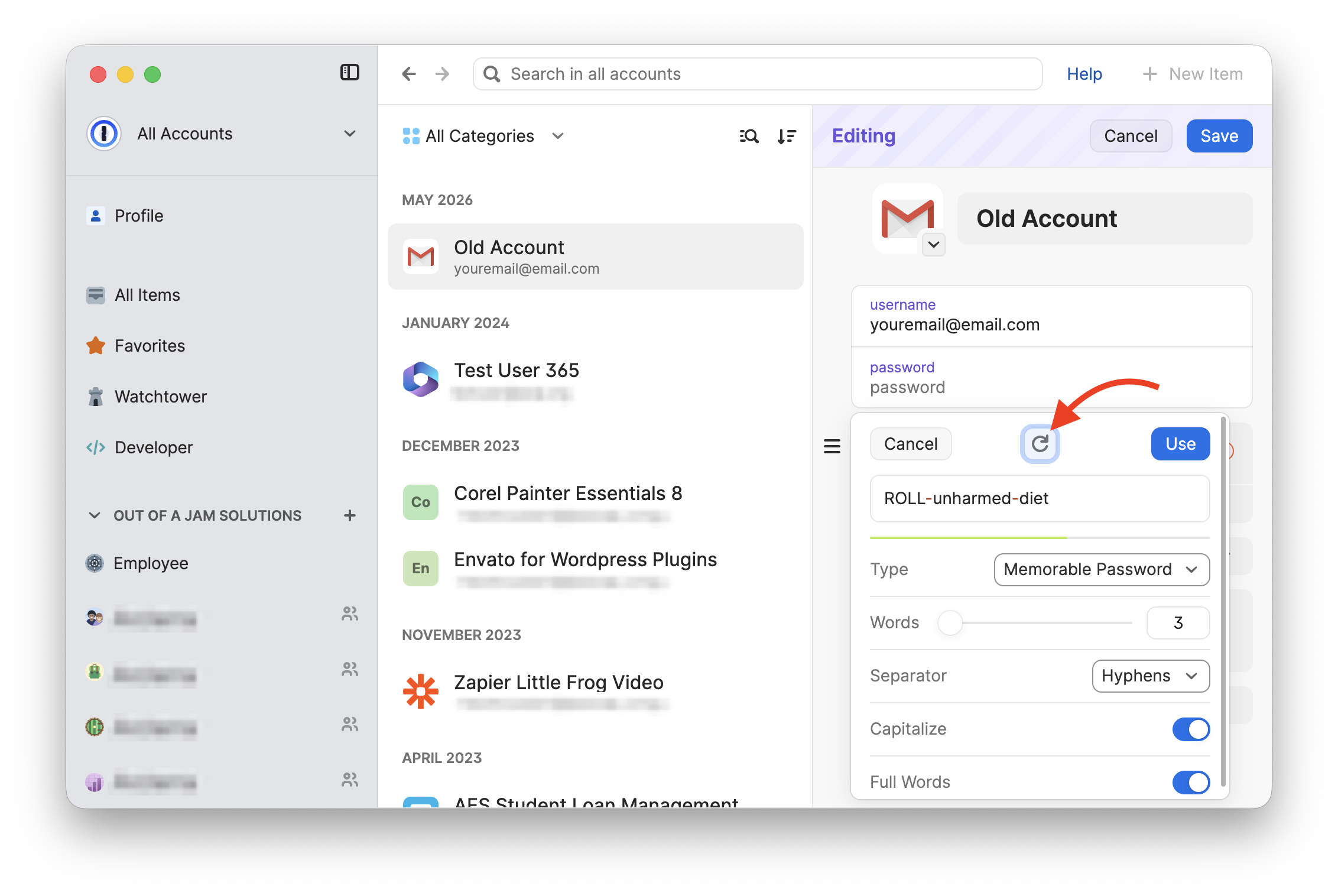
Click refresh until you feel good about the option. When you’re ready, click “Use.”
3. Add numbers to meet security criteria
The memorable password will show up in the password field. This is a strong option that is not impossible to keep in mind, but it is still missing something. Most accounts require a certain level of password security, including things like capital letters and symbols (satisfied by the hyphens). Most often also require at least one number in the password. You can manually type in a couple of random numbers at the end of the passphrase.
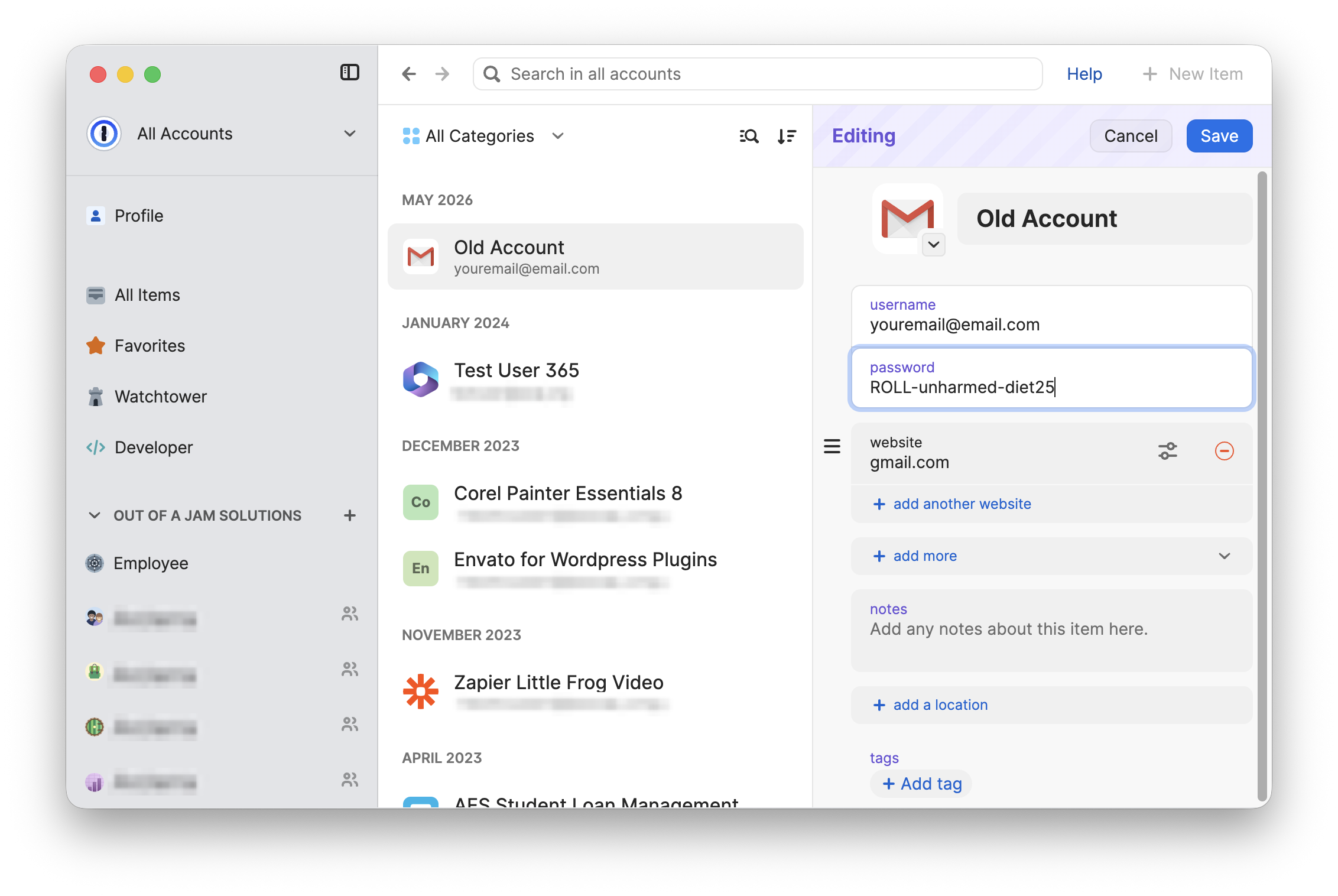
4. Click “Save”
Great! You’ve changed your information in 1Password. You still need to go to the website and change the password there. This is a good time to do that!
5. Update your password on the website
In an ideal world, you’ve prepared by logging into the website and are already at the reset password screen. You can now copy and paste the new password into the new password fields. You can do this by switching between your browser and the 1Password app that you already have open.
But wait– You often need to enter the old password too for this process!
Not to worry. You can view the old password in 1Password under the item’s password history. In the 1Password app, hover over the password and click the dropdown arrow that appears to the right. Click the option to “View password history.”
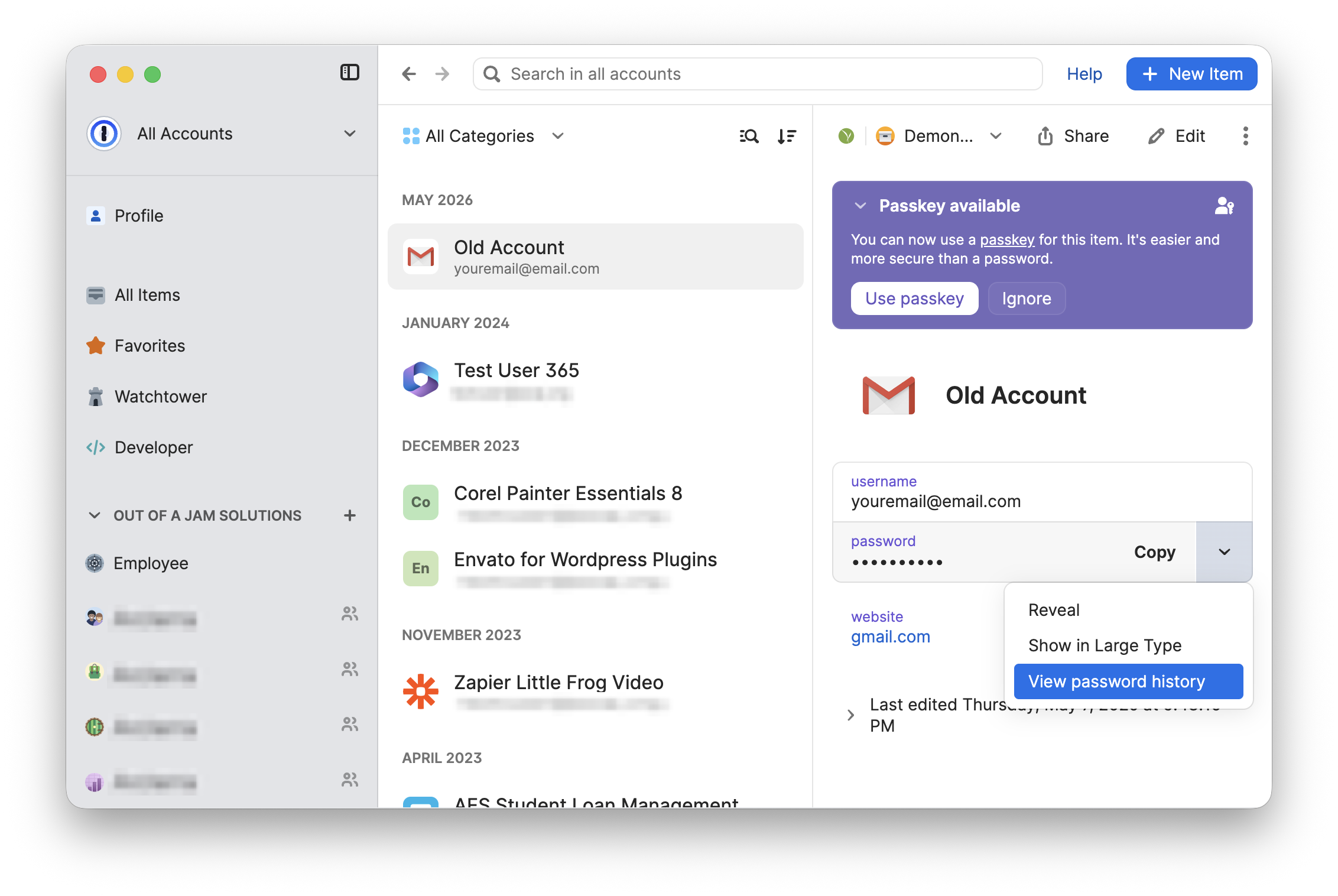
A smaller window will pop up showing you a concealed password (or passwords) with associated dates. This is your former password. You can hover over this just like you do with your regular password items, and click the dropdown to choose “Reveal” to make sure this is the old password.
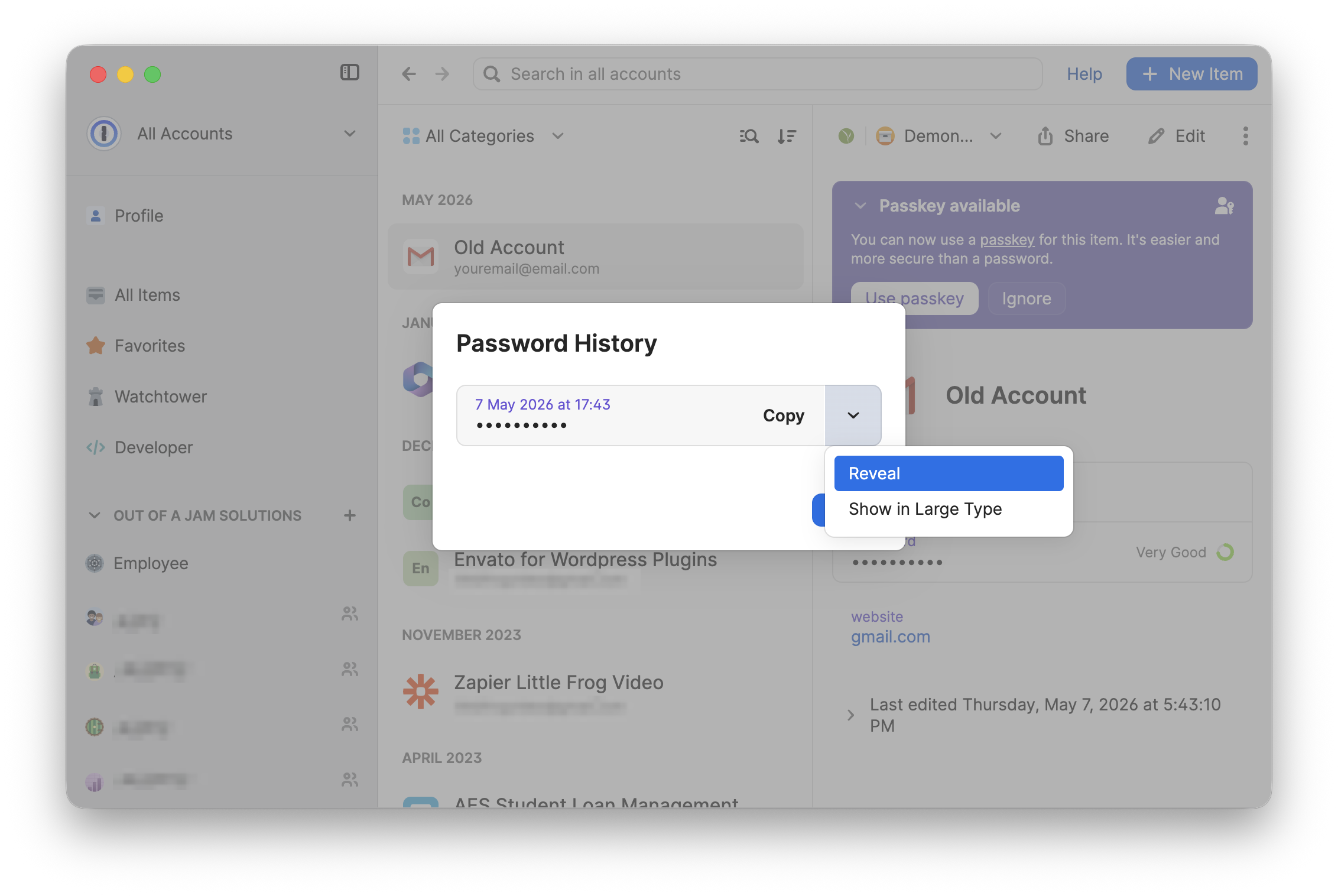
Once you’ve confirmed, click the password itself to copy.
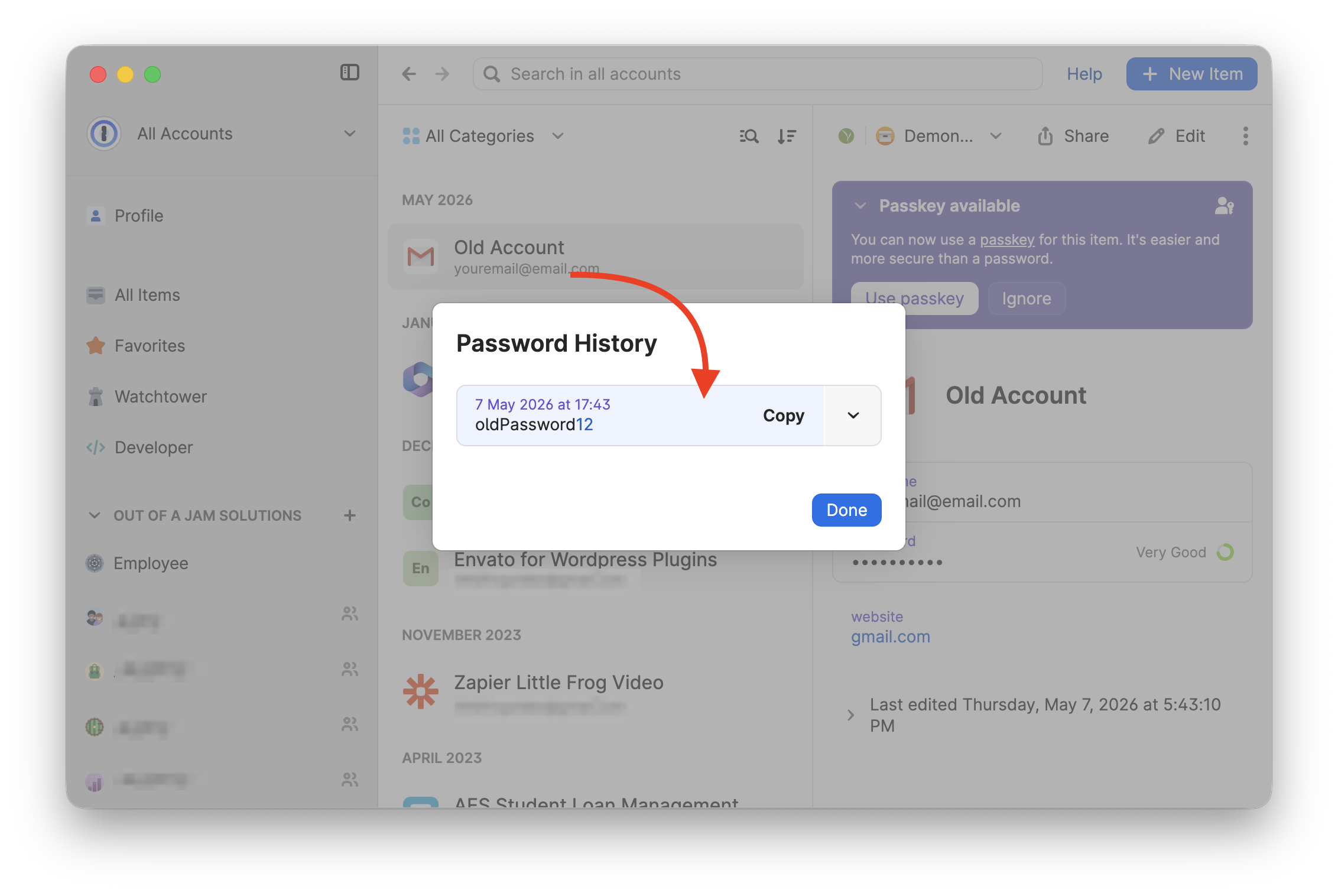
Now you can paste the old password into the proper location for the reset password process, if needed.
Addendum: some things you’ll see on the website
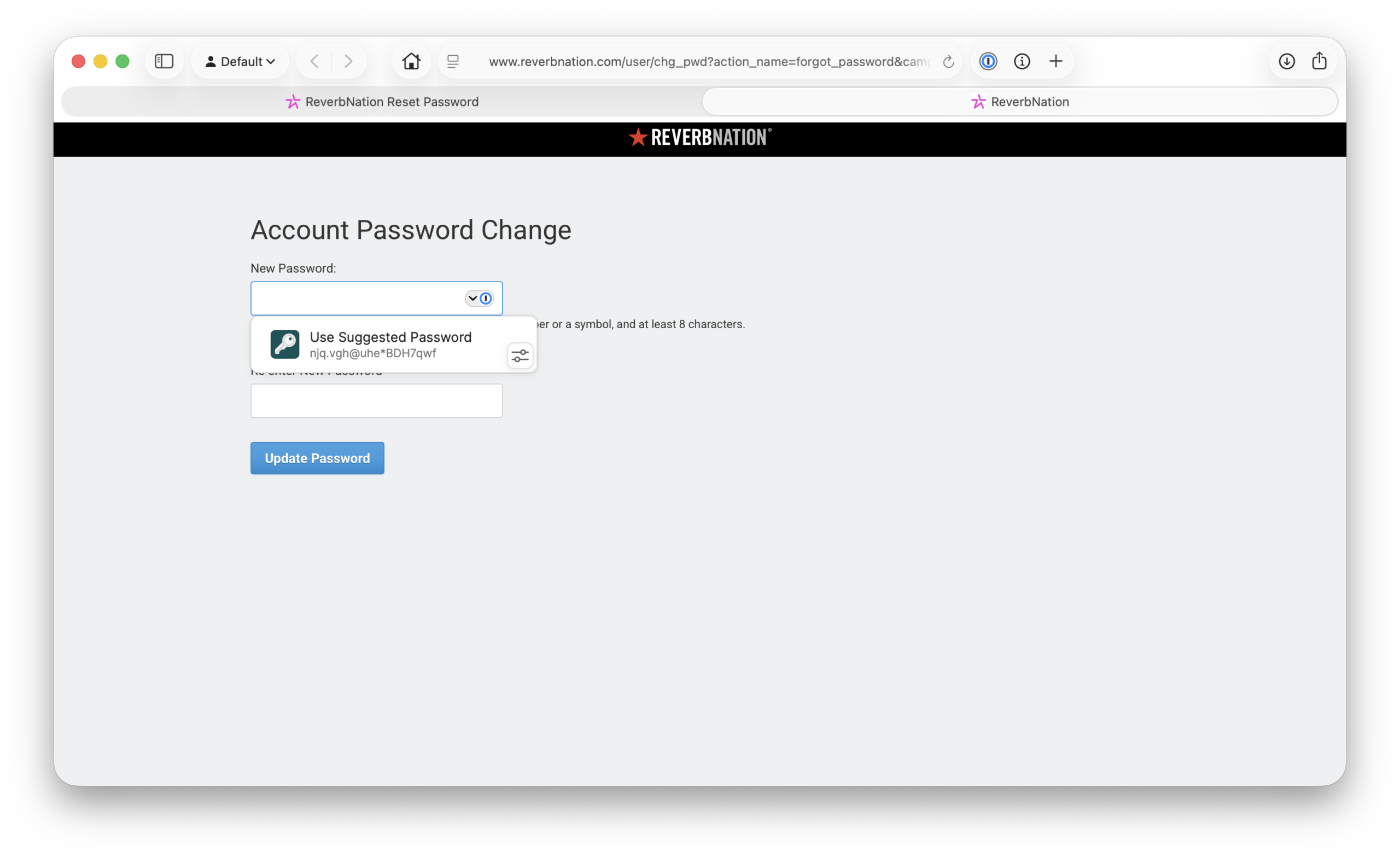
When you update a password on a website, 1Password will always suggest a secure, random password, even if you did just choose a new secure password yourself! To dismiss the suggestion, type (or paste) into the text box, or click somewhere outside of the suggested password. When you change your password in the 1Password app first, you don’t need to use the “suggested password” on the website.
You might also see a box in the top right corner of your browser offering to save your updated password in 1Password. You don’t need to do that, because you saved it in advance! Click the X to close out of this suggestion.
We’ll cover updating and saving a password all within a website, but for now, you can do the following within your 1Password application:
- Edit your password item
- Create a new, secure, memorable password or passphrase (including numbers)
- Save the updated item
- View the password history and copy as needed
- Use password history and the updated password to update the password on the website